1. Choose the right account and sender
Open the intended account’s Live Panel and its Auto reply settings. “Current host” uses that live account for its account rules and other automatic interactions. “Logged-in support” uses the support accounts you select. Shared groups keep their own sender settings; changing the account sender does not rewrite a shared group.
- On the main Auto Reply page, Applied Accounts identifies the live accounts using a group; Support Accounts is its optional sender.
- Leaving a shared group’s support empty uses the applied account. A configured but unavailable support account needs repair or removal.
| Setting | What it controls | Before enabling |
|---|---|---|
| Account rules | Replies saved for this host; only the first matching account rule is used | Check the selected sender and rule order |
| Linked shared groups | Reusable group rules; multiple linked groups may each match | Check group enablement, account binding and its sender |
| Account main switch | This account’s replies, greetings, welcomes and thanks | Save to apply; other live accounts are unaffected |
2. Add a keyword rule that is easy to test
Enable keywords and commands, add a rule, separate alternative keywords with commas or new lines, and write a reply of no more than 150 characters. Choose Contains when a phrase may appear inside a longer comment; choose Exact when the full comment must match. Account rules are checked from top to bottom.
- Example: Exact “delivery” → “Please check the delivery options shown for your address.” Test “delivery” and “delivery time” separately.
- Use a whole-number cooldown of 5–3600 seconds. This is the rule’s minimum repeat interval, not a platform delivery guarantee.
3. Configure greetings, welcomes and thanks separately
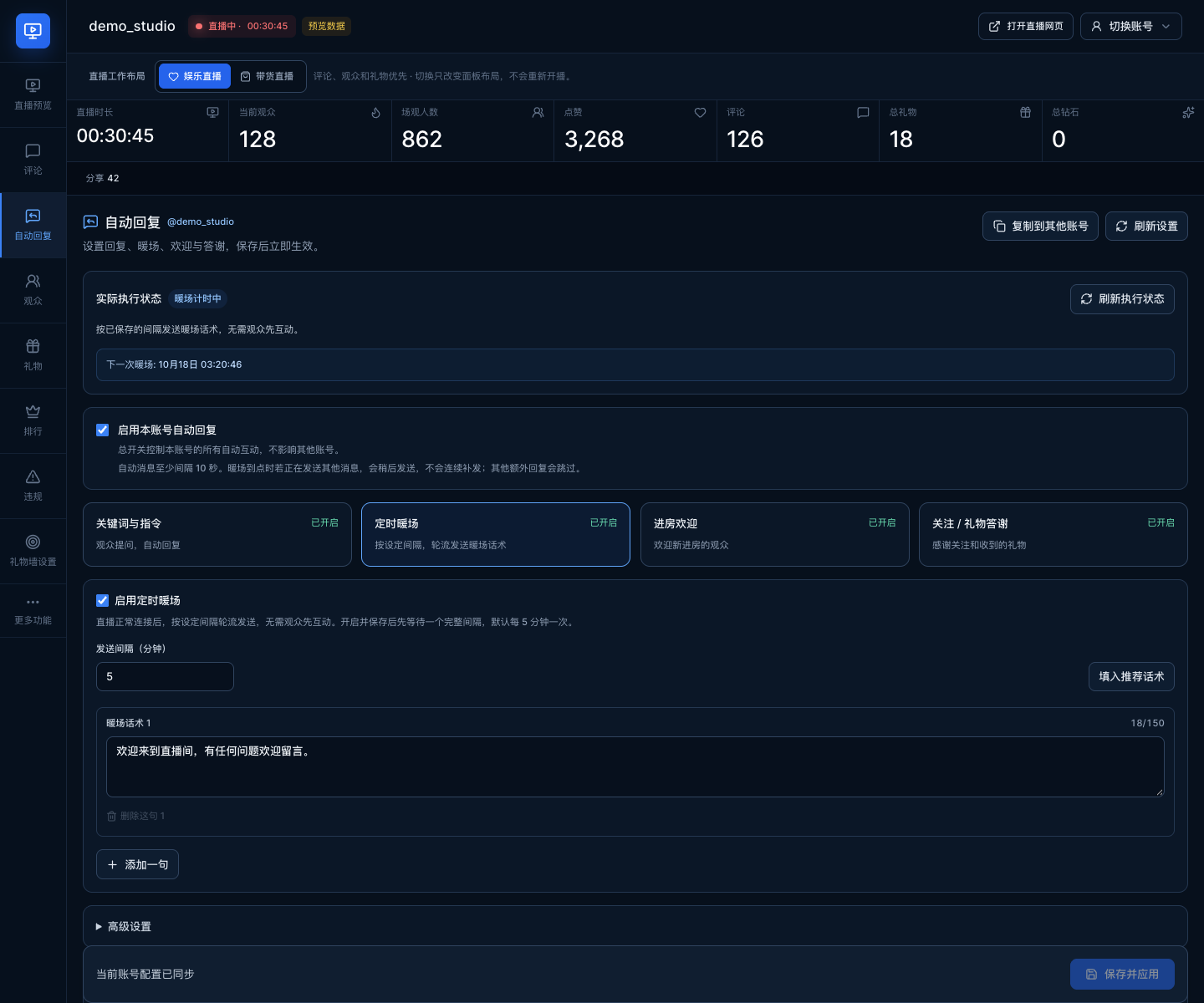
Scheduled greetings rotate plain-text messages while the live connection is healthy; viewer activity is not required. After enabling and saving, wait a full interval before the first greeting. The default is 5 minutes and the configurable interval is 0.5–1440 minutes. Welcome and follow messages run once per viewer per live session; gift thanks wait for a combo to finish.
- Insert supported viewer, gift and count placeholders using the editor; use plain text for scheduled greetings.
- Review the gift threshold and cooldown under advanced settings. The client spaces automatic messages at least 10 seconds apart; due greetings wait without accumulating a backlog and other extra replies may be skipped. This does not guarantee TikTok acceptance or visibility.
4. Preview the draft, then save it
Test match evaluates the current draft and entered comment. It sends no comment and consumes no cooldown. A sample welcome or gift preview is also a local example. Check the matched rule and sender, then select Save and apply; unsaved changes are not the running configuration.
- Change the keyword or test comment? Run the preview again.
- If another window changed the saved settings, keep any draft edits you need, discard and refresh before saving a revised version.
5. Verify the real LIVE from a viewer device
Once the account is live and receiving events, send one matching and one nonmatching neutral comment from a permitted viewer account. Check the expected sender and look for the reply on an independent viewer device in the same room. The execution panel distinguishes waiting, a send attempt and a returned room comment event; even a returned event should be checked against viewer visibility.
- No trigger received: confirm the account, room and live event connection.
- Matched but no visible reply: check cooldown, enabled rules or groups, sender login and the room’s commenting controls. Pause the unreliable rule and answer important questions manually.
6. Copy a verified setup without sending unexpectedly
Save the source account before choosing Copy to other accounts. Copying replaces the selected accounts’ keyword rules, shared-group links, messages and intervals. Each target keeps its sender for account rules and other interactions; shared groups retain their own senders. Automatic interactions are paused after copying.
- Open each target account, review its room, sender, groups and wording, then enable and save deliberately.
- CSV import/export on the main Auto Reply page remains useful for reusable group rule sets; it is separate from copying the full account interaction settings.
FAQ
Frequently asked questions
Start here for common questions about purchasing, access and system requirements.
Does Test match send a comment to TikTok?
No. It previews the current draft without sending or using the cooldown. Save the configuration, then run a separate viewer-side test in the actual LIVE.
Why are replies paused after copying settings?
Copying intentionally leaves the target accounts’ automatic interactions paused. Review each target’s sender and messages, then enable and save them.
Can I use automatic replies for entertainment as well as shopping?
Yes. Keyword answers, greetings and follow or gift thanks are not limited to shopping. Choose wording suited to the broadcast and verify what viewers see.
Do I need a separate support account?
No. Choose Current host for this account’s own interactions, or leave a shared group’s Support Accounts empty to use its applied live account. Use support only when a different authorized account should send.
Content reviewed: October 18, 2026 · TKLive product team