YOUR STUDIO, THOUGHTFULLY CONNECTED.

TikTok LIVE.Setup to chat.One workspace.

Bring stream keys, OBS instances, accounts, media and live chat together.
First-time sign-up includes a free 1-day Daily Card for 24 hours.

TikTok stream key tool
WindowsmacOSDesktop workspace
THE TKLIVE WORKSPACE
TKLive / OBS instancesTKLive
Built-in OBS management: two separate demo instances and settings
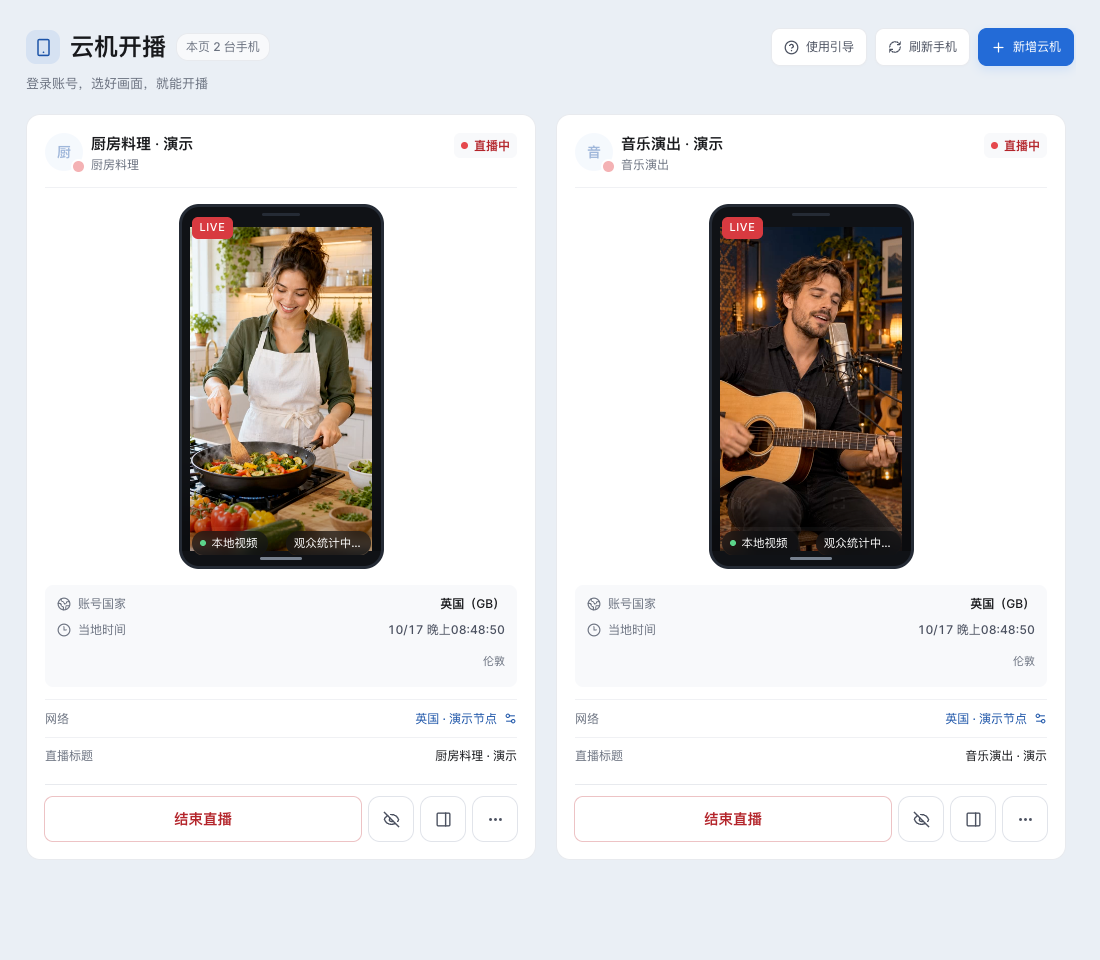
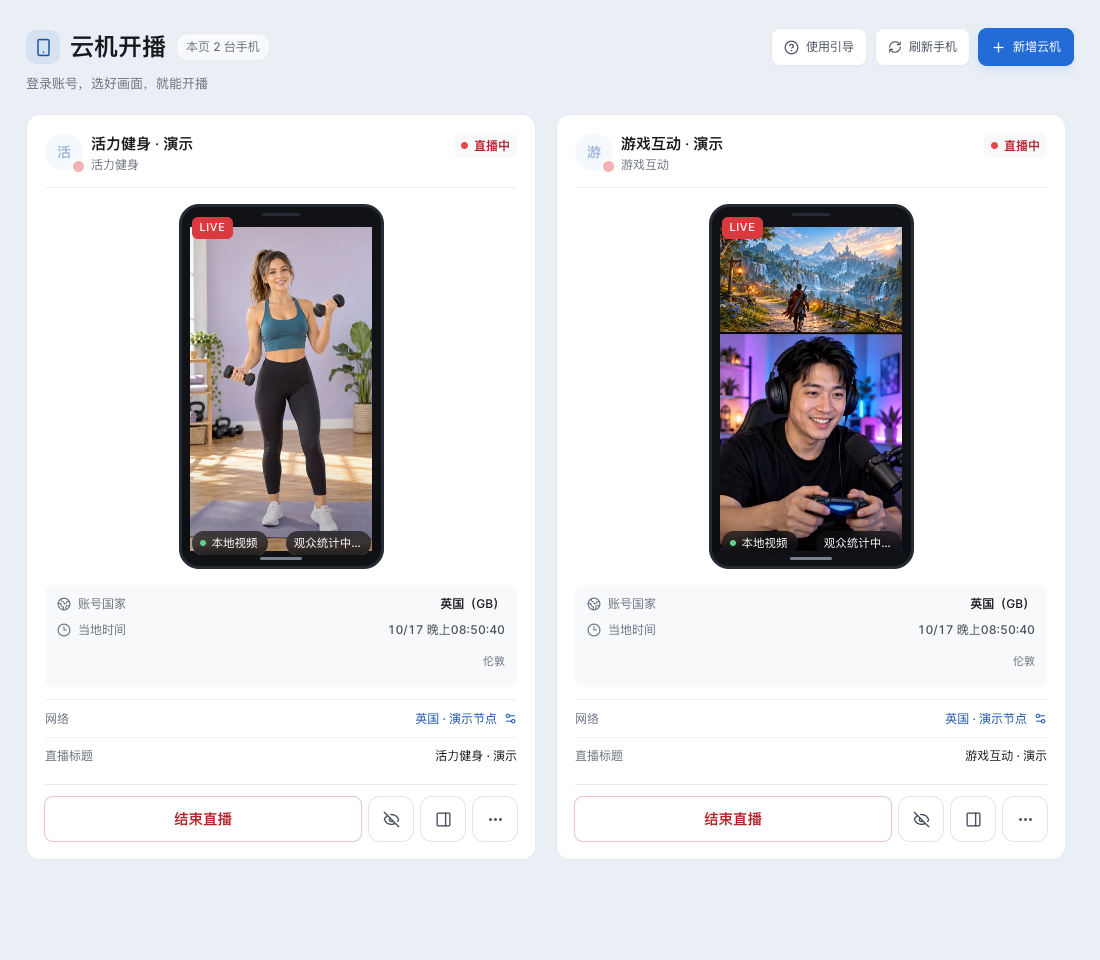
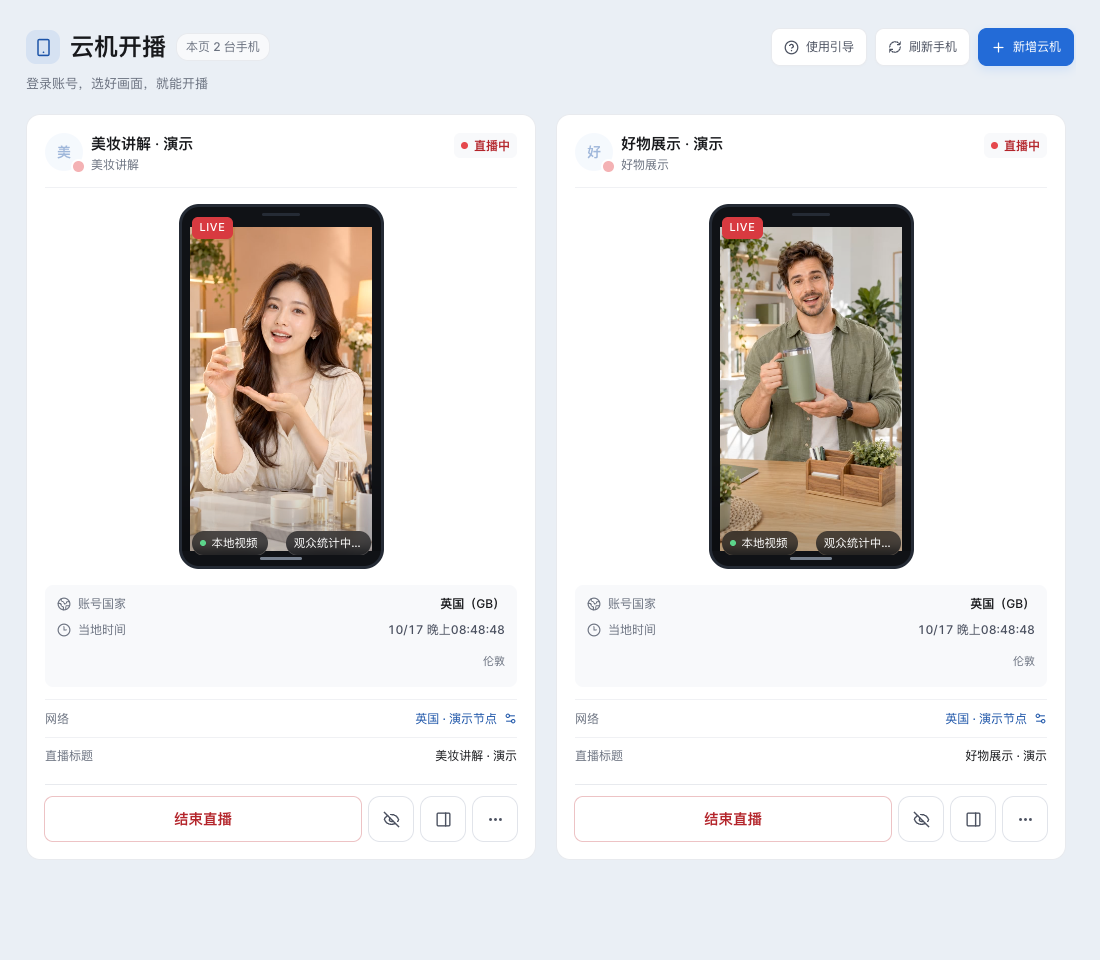
Optional cloud phone workflowReal cloud phone interface with fictional demo phones and a local picture
One workspace. Everything in place.Stream keys · OBS · Media · Chat
Chinese app interface · Demo data

LESS SWITCHING. MORE CREATING.

Tools together.
A workflow that flows.

Find your own way to work in the real interface.
From account setup to every frame your viewers see.

01 / YOUR PICTURE

The OBS you know.
More room to create.

Keep using your camera, desktop, windows and custom scenes. Configure OBS instances separately and connect the right picture to each live task.

  • Separate OBS windows and settings
  • Connect your OBS scenes
  • Dual-screen and A/B previews
Explore built-in OBS instances
Multiple OBS instances · Real app interfaceTKLive
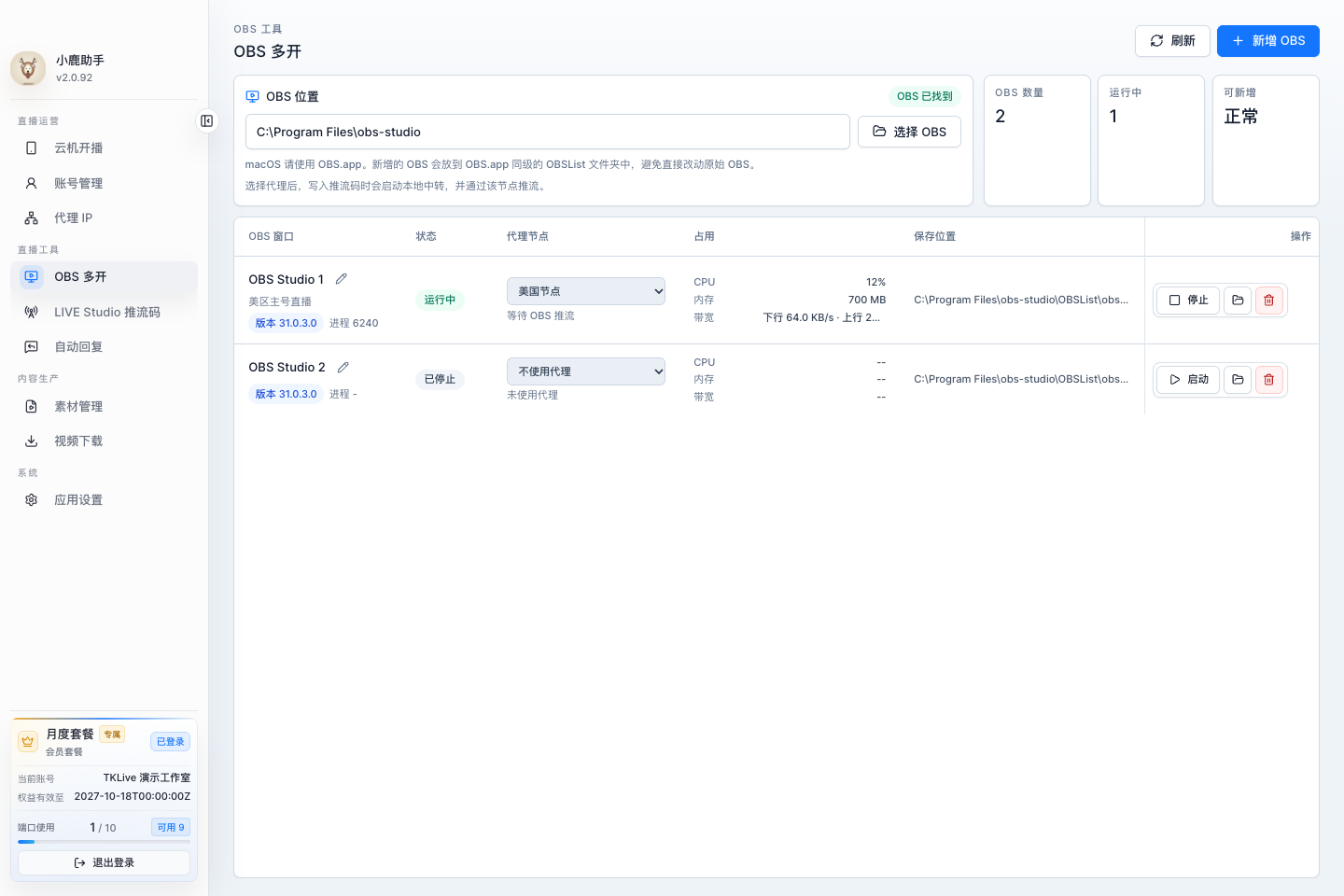
Built-in OBS management: two separate demo instances and settings

02 / CLOUD PHONE

Your cloud phone,
ready on your desktop.

See accounts, proxies and connection status in clear cloud phone cards. Set up your phone and account, then choose OBS or local media for your live picture.

  • Three guided steps to get ready
  • Choose a proxy for each phone
  • Check the picture and connection
Explore the full workflow
Cloud phone streaming · Real UI / Demo dataTKLive
Cloud phone streaming: two demo phones and a local picture preview

03 / STAY CONNECTED

A comment comes in.
Keep the conversation going.

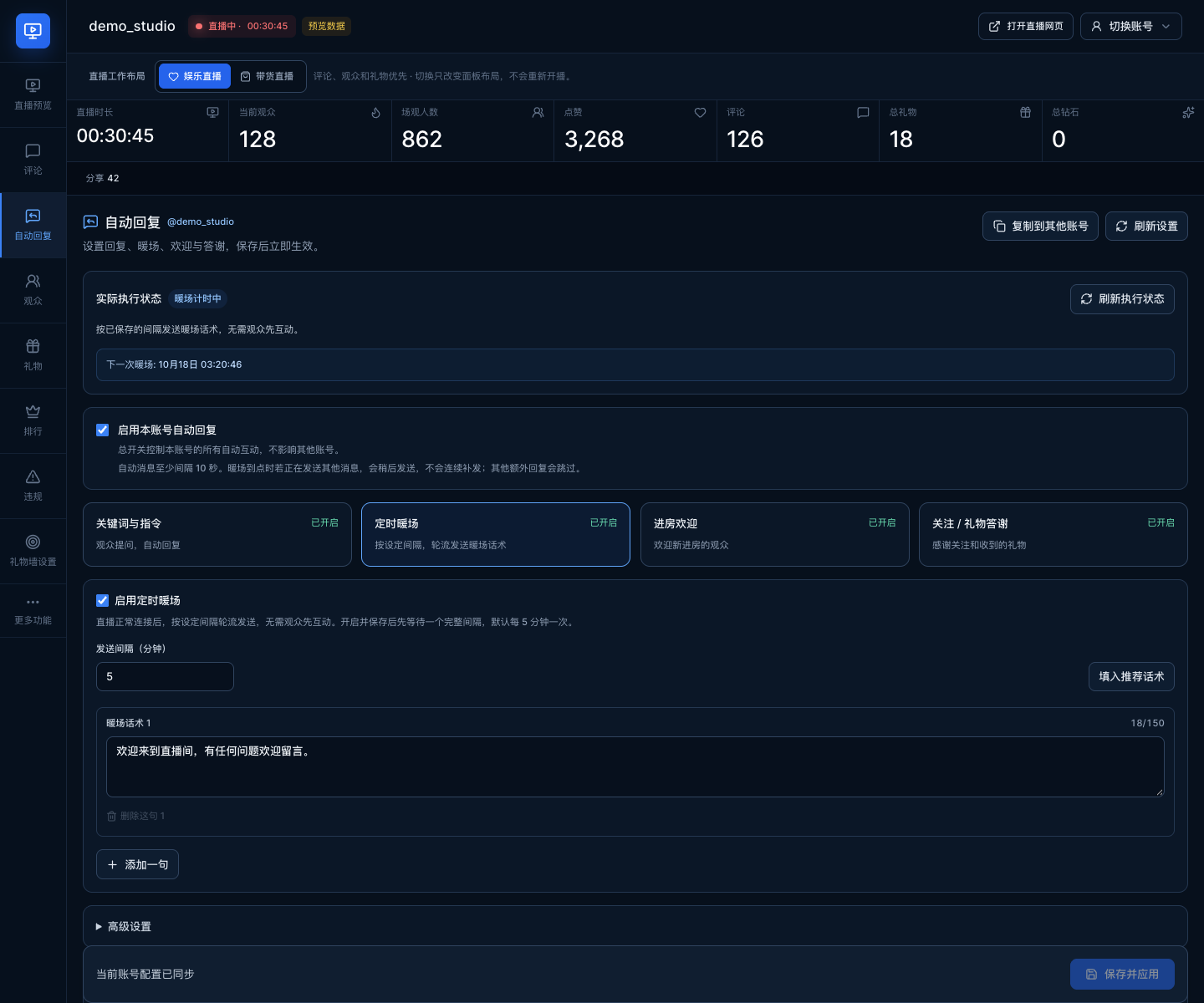
Choose entertainment or shopping layouts to see comments and reply status together. Set up keywords and scheduled messages, and prepare products and rotating pins for eligible live rooms.

  • Keywords and flexible auto replies
  • Pin products and rotate selections
  • See public comments and reply status
Explore live interactions
Live interactions · Fictional demo dataTKLive
Real live panel and auto reply settings with fictional demo viewers and data

EXPLORE THE REAL WORKSPACE

Take a look.
Your next workflow awaits.

Explore OBS, media, chat and optional cloud phones in one workspace.
Enlarge any screenshot. All accounts and data shown are for demonstration.

Multiple OBS instances: a scene for every live task. Current app UI with demo data.
Multiple OBS instances: a scene for every live task.

Manage separate windows and settings in the app to keep your live tasks organized.

01/04
01

Check account and LIVE access

Select the intended account and check its LIVE route and current session.

02

Choose your live picture

Connect an OBS scene or choose local audio and video media.

03

Review and confirm your setup

Preview the picture and sound, then check the platform and viewer status.

EVERYDAY LIVE ESSENTIALS

From setup to conversation,
your essentials are here.

Manage stream keys, scenes, media and interactions in one place.
Combine the tools that fit the way you create.

MADE FOR YOUR DESKTOP

Choose your desktop.
Prepare your next live.

Available for Windows and macOS. Find the current version, installation guides and file checks on the download page.

View plans and access

GOOD TO KNOW BEFORE YOU GO LIVE

Your next step.
Start right here.

View all guides

A FEW THINGS TO KNOW

Before you begin,
a few useful answers.

Contact support
Can I try TKLive free when I first register?

Yes. Your first successful registration automatically starts a one-time, free 1-day Daily Card, valid for 24 consecutive hours with Daily Card access and limits. Choose a plan if you want to continue after expiry; view remaining time and allowance in the user center.

What TikTok LIVE work can I prepare in TKLive?

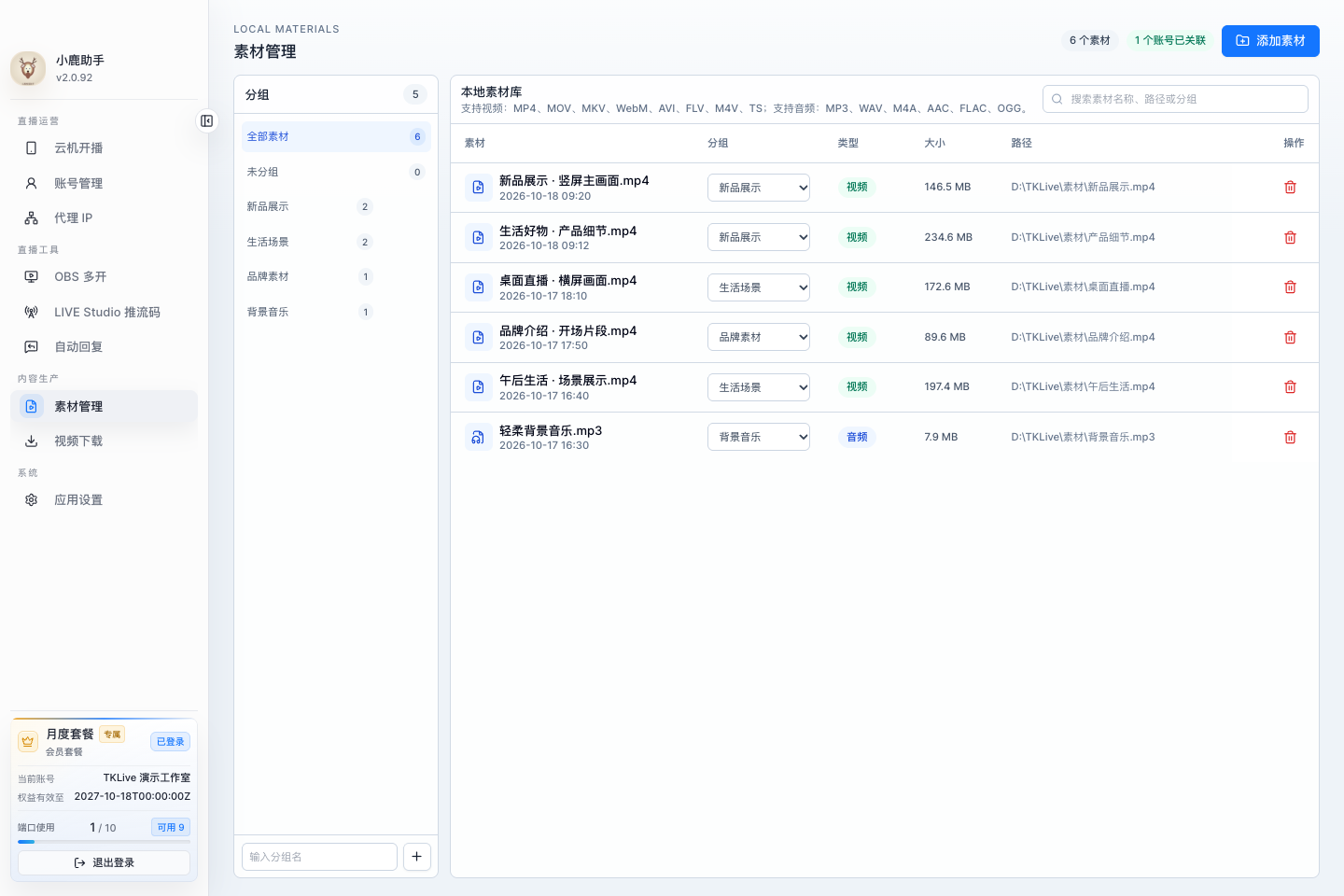
Organize accounts and current stream details, then configure built-in OBS instances, media queues, auto replies and gift walls. LIVE products and OpenAPI are available with the required access. Each feature has its own explanation and guide.

Do I need a cloud phone to go LIVE?

No. Prepare OBS scenes or local audio and video using the LIVE route available to your account. Cloud phones are an optional workflow and require rental access, a proxy and a valid account.

Can I prepare gaming, entertainment or shopping streams?

Prepare landscape, portrait or stacked OBS scenes for your content and choose the matching interaction layout. Shopping product tools require TikTok Shop access; check platform LIVE eligibility and the available route separately.

Does it work on Windows and macOS?

TKLive offers desktop apps for Windows and macOS. The download page lists current installers, system requirements and verification instructions. Feature availability depends on your app version and account access.

READY WHEN YOU ARE

Great content.
Ready for its moment.

Try Daily Card access free for 24 hours after your first registration.