Confirm the intended portrait route and source
Check that the account’s current LIVE input accepts the portrait output you plan to send. Then select the game capture method appropriate to your system and game; do not assume every title or protected window can be captured identically. Use a permitted game session and a camera or other image you are authorized to broadcast. You can prepare and record the scene locally before obtaining a stream key.
- Use the same scene for preparation and final output checks.
- A portrait composite does not enable a missing account permission or a second output.
Lay out two regions before moving sources
Start with the complete portrait canvas and allocate the game’s full width at the top. A 16:9 image at 1080 pixels wide is exactly 607.5 pixels high, so 608 is a practical rounded bounding region; fitting the source preserves its aspect ratio. At 720 pixels wide, the 16:9 game height is exactly 405. The lower numbers describe available camera space, not the camera’s native aspect ratio.
| Canvas | Game region: x, y, width × height | Camera region: x, y, width × height |
|---|---|---|
| 1080×1920 | 0, 0 · 1080×608 | 0, 608 · 1080×1312 |
| 720×1280 | 0, 0 · 720×405 | 0, 405 · 720×875 |
Build the scene in OBS and keep its output proportion consistent
Create a dedicated scene such as “Game + camera — portrait.” In OBS Video settings, set the Base (Canvas) Resolution to the planned 9:16 size and choose a sustainable 9:16 Output (Scaled) Resolution. Add the game source and fit it into the upper region, then add the camera or permitted portrait source below. Use separate source groups if you also have a nameplate or background so moving one region does not accidentally move the whole scene.
- Reposition sources after changing the base canvas; changing output alone does not rearrange them.
- Confirm this scene and account are the ones selected in the intended OBS instance.
Keep game information intact; crop the camera deliberately
Fit the full landscape game first, then inspect health bars, score, map, inventory and edge prompts at phone size. Cropping the sides to enlarge the action may remove important HUD information. For the lower region, either fit the whole camera image with a background or intentionally crop while keeping the face and gestures visible. A portrait camera source will not naturally match every lower-region rectangle. Do not stretch either source just to eliminate empty space.
- Check a busy game moment, not only its menu screen.
- Leave important text clear of the current viewer interface and comment overlays; verify on the target device rather than assuming a universal safe margin.
Use the demo as a composition reference, not proof of a live customer setup
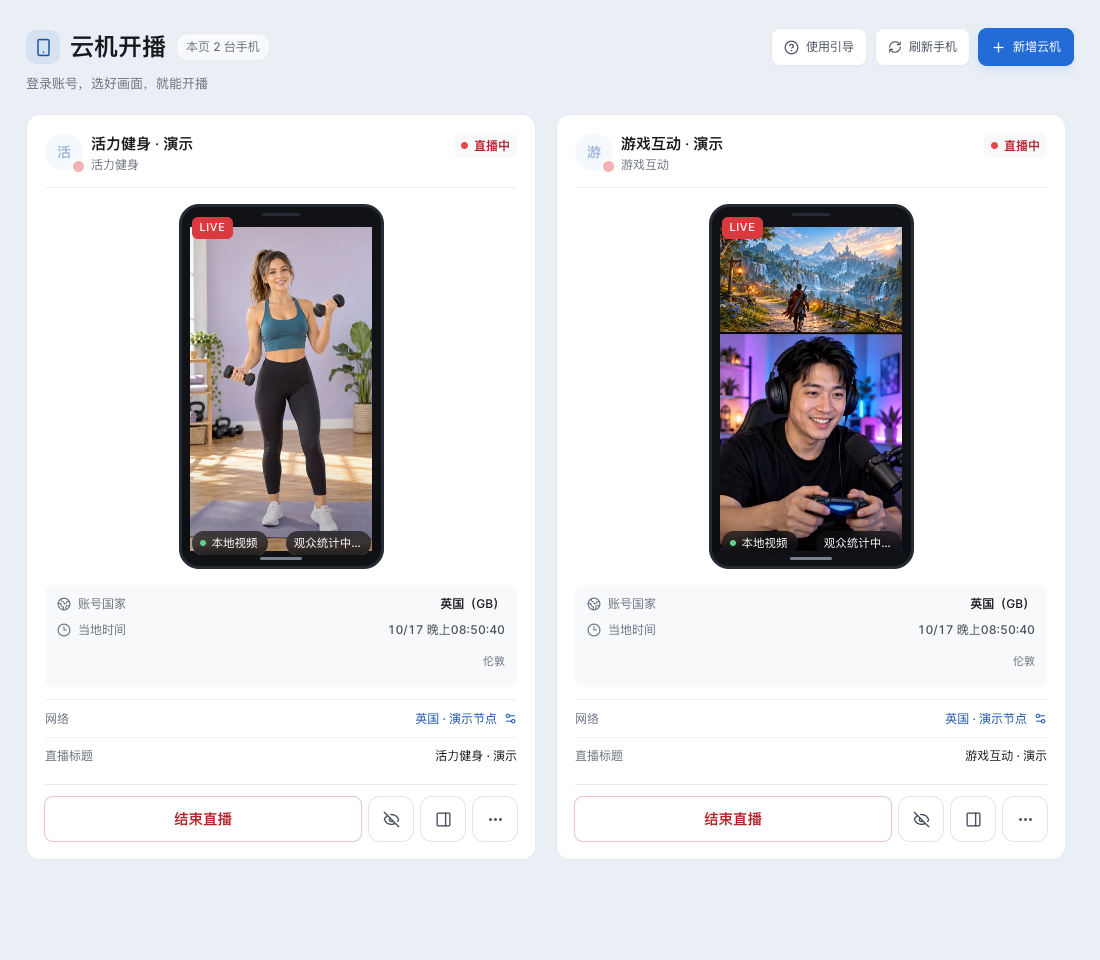
The illustration below shows a gaming-style composition within a TKLive demo workspace. Use its separation of game and host as a visual reference, then construct and inspect your own scene. A website image cannot confirm your game capture, account route, camera crop or viewer layout.
Record motion and sound locally before opening a public LIVE
Make a short local recording with a fast-moving game sequence, a spoken sentence, a louder game effect and a scene transition. Listen for duplicate game sound, an echoing microphone and clipping; check lip sync and whether the camera remains correctly framed when you move. Watch the recording at phone size. If capture or encoding stutters locally, simplify sources, lower frame rate or choose a sustainable output before diagnosing the streaming network.
- Check that each intended audio source is captured once.
- A stable menu or still screenshot does not prove gameplay will remain smooth.
Save the layout, then verify delivery only when ready to broadcast
Save the working scene and record which canvas, output and capture sources it uses. If you later choose to broadcast through an authorized route, obtain the current session’s input details where required and select the matching output. Compare OBS with the official room and an independent viewer phone: confirm game motion, readable HUD, host crop, sound and orientation. If only the phone result differs, identify that viewing or delivery stage before rebuilding the scene.
- You do not need to start a public LIVE to finish the local layout exercise.
- One stacked portrait picture is different from native portrait-and-landscape dual output; use dual output only where the current account and route actually support it.
FAQ
Frequently asked questions
Start here for common questions about purchasing, access and system requirements.
Is a 1080×608 game region exactly 16:9?
It is a rounded bounding region. At 1080 pixels wide, exact 16:9 height is 607.5 pixels. Fit the source while preserving its aspect ratio rather than stretching it to force the rounded dimensions. At 720 pixels wide, 405 pixels high is exact.
Will the lower camera always fill its region without cropping?
No. The region may have a different proportion from your camera. Choose between fitting the complete camera image with a background and intentionally cropping. Check the face and movement after either choice.
Does this create a landscape and portrait LIVE at the same time?
No. The example combines a landscape source and a camera inside one portrait canvas. Native dual output is another workflow and depends on current platform and account support.
Can I finish the layout without going LIVE?
Yes. Use a local preview and recording to test geometry, motion and audio. A public viewer check becomes relevant only when you decide to broadcast.
The game is sharp on my computer but its HUD is tiny on a phone. What should I change?
Inspect the recording at the actual viewing size. Consider a simpler HUD where the game allows it, a different scene balance or another supported viewing format. Do not crop essential information or stretch the picture merely to make the game seem larger.
REFERENCES
References
Content reviewed: October 18, 2026 · TKLive product team