1. Choose between one composed picture and two outputs
Write down what viewers should receive before opening another encoder. A game above a camera in one portrait canvas is a single composed picture. A confirmed portrait and landscape pair represents two layout-specific destinations within the current room. Merely opening two OBS windows does not create those destinations.
| Production goal | Stream details | Picture to prepare |
|---|---|---|
| One portrait game-and-camera scene | One current, supported destination | A single portrait canvas with stacked sources |
| Portrait layout in a confirmed dual pair | The portrait server and its matching key | A portrait composition for that output |
| Landscape layout in the same pair | The landscape server and its matching key | A separate landscape composition |
2. Confirm the account and current LIVE Studio room
Use the official LIVE Studio app on the supported computer and confirm the intended account can start its LIVE. In TKLive, select that account and open LIVE Studio Stream Key. Check the supported-device and plan state before retrieval. The retrieval action reads stream details; it is separate from the explicit Studio start and stop controls. Cloud phones are not a prerequisite for this desktop workflow.
- Confirm the room and account in the official interface first.
- Do not assume every account has dual-layout access.
- A retrieval timestamp records when details were read, not when the room started.
3. Verify both layout labels before copying anything
A confirmed pair is shown under Portrait and landscape stream keys with one account and LIVE-room identity, followed by separate Portrait and Landscape sections. Keep each server URL with the key from that same section. If several results appear without a confirmed pair, use the selection control and verify their identities manually. Do not guess orientation from list position, a hostname or an older screenshot.
- Compare account, room, orientation and retrieval time.
- A single valid result remains a single result.
- Keep complete keys out of shared images and public documents.
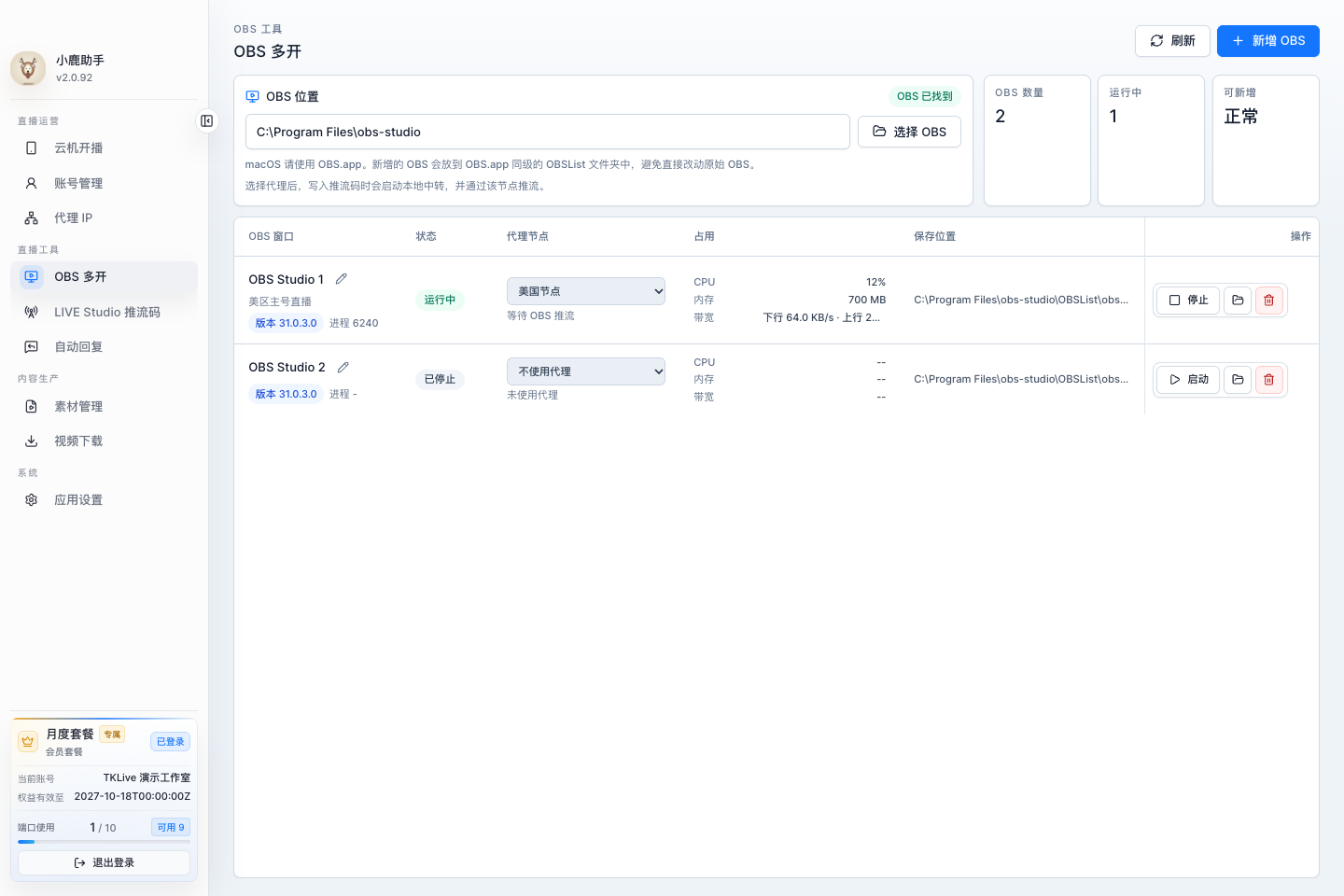
4. Select distinct OBS targets before retrieving the pair
Prepare clearly named OBS instances such as Account A — Portrait and Account A — Landscape. In the OBS target controls on the retrieval page, choose the instance for each layout before clicking Retrieve stream key. For a confirmed pair, the client can write the corresponding details to those selected targets; check each write-status message afterward. If no target is selected, do not assume an OBS configuration was updated.
- Use different target instances for portrait and landscape.
- Keep the account-to-instance mapping visible to the operator.
- Writing settings is preparation, not proof that an output is live.
5. Keep output settings and scene composition separate
Name the OBS profile and scene collection for the intended layout. Profiles store stream, video and output settings; scene collections store scenes and sources. Check both when switching between portrait and landscape. Preview the game, camera and text in the correct canvas, then inspect the actual output dimensions. Reusing a scene name alone does not ensure that its output has the right orientation.
- Check the current profile, collection and selected scene together.
- Keep important game information readable in the portrait version.
- If you only need one stacked picture, retain the simpler single-output setup.
6. Validate the publishing route and the audience result
Follow the start or connection procedure supported by the current route, with a clear owner for each output. Do not point Studio and another publisher at the same destination just to test whether both will work. After configuration, inspect account and room state, video, sound and the audience-side layout separately. A successful write or encoder connection cannot demonstrate that both intended layouts reached viewers.
- Check each available layout from the audience side.
- Watch the combined encoder and upload load when two outputs are active.
- Use a short monitored check before the full programme.
7. Retrieve again after a new room or session
When LIVE Studio starts a new LIVE, retrieve the current pair again and recheck the target mapping. If only one layout is returned, preserve that fact instead of filling the missing side with a saved key. If the room or account cannot be identified, return to the official session and confirm it before publishing. Keep the client version, diagnostic code, intended layout and error time for support; the key itself is not needed in a public report.
- A new session needs newly verified details.
- Do not combine the portrait side of one session with the landscape side of another.
- Resolve missing access or an unconfirmed room before changing unrelated OBS settings.
FAQ
Frequently asked questions
Start here for common questions about purchasing, access and system requirements.
Does every TikTok account have portrait and landscape keys?
No. Use the capability and results available to the current account and LIVE Studio session. The client does not grant dual-layout access.
Are the two keys for two separate LIVE rooms?
A confirmed dual-layout result identifies two layouts in the same current room. Verify the account and room shown with the pair.
Do I need dual keys to put gameplay above a camera?
No. You can compose both sources inside one portrait scene and use one supported output. That is different from separate portrait and landscape destinations.
Will retrieving or writing keys automatically start OBS?
Treat retrieval and configuration as preparation. Check the target write status, then follow the explicit start procedure for the supported route and verify the audience result.
REFERENCES
References
Content reviewed: October 18, 2026 · TKLive product team